


This guide focuses on passkeys, recovery hygiene, and the most common mistakes that lock people out.
Updated for 2026.
Coinbase Smart Wallet is built around passkeys, which means setup and recovery feel different from a traditional seed phrase wallet. The upside is smoother onboarding… the downside is that many users do not realise the most important part of the wallet is now managed inside device passkey settings.
Key Points
- Coinbase Smart Wallet uses smart wallet passkeys for seedless-style login, so access depends on your device passkey setup and device security.
- The biggest avoidable mistake is deleting the Coinbase Smart Wallet passkey from your iOS or Android passkey settings, then discovering you cannot sign in.
- If you use multiple Apple IDs or Google accounts across devices, passkey restores can fail simply because the passkey is saved under a different account.
- Smart wallets can reduce beginner pain points, but they introduce different trade-offs, including relying on smart wallet infrastructure and recovery flows.
- Treat approvals and signing prompts with the same seriousness as any wallet… most losses come from phishing and careless signing, not the app randomly failing.
If you want quick definitions for passkeys, seed phrase, smart contract wallet, account abstraction, gas fees, token approvals, and signatures, see the Markets Unplugged Crypto Glossary.
New to wallets in general? Start with the wallet hub article that explains wallet types and how wallets work, then come back here to set up Coinbase Smart Wallet safely.
Quick Answer
To set up Coinbase Smart Wallet, install the official app, create a Smart Wallet, then save your passkey using Face ID, Touch ID, or Android biometrics. From then on, you log in with that passkey… and you manage it inside your device passkey settings, not by writing down a traditional recovery phrase.
What Coinbase Smart Wallet Is
Coinbase Smart Wallet is a smart wallet that uses passkeys to make onboarding simpler. The idea is that you can access the wallet across devices using cloud-based or hardware passkeys, rather than relying on memorising a recovery phrase.
This model is often grouped under account abstraction style wallets, meaning the wallet behaviour can be more flexible than a classic single private key wallet.
If you want a plain-English explainer of smart contract wallets and account abstraction wallets, read our smart contract wallets guide before continuing.
Coinbase Smart Wallet Vs A Traditional Self Custody Wallet
A quick mental model:
- A traditional wallet is usually “one key controls everything”, so recovery is about protecting the seed phrase.
- A smart wallet approach can support modern login patterns like passkeys, and the recovery assumptions shift to the security of your device accounts and passkey storage.
This is not automatically safer or less safe, it is a different trade-off. The advantage is usability. The risk is that many users do not realise where the “master key” has moved to.
Before You Start
Use these checks once, and you avoid most disasters.
- Install only from official sources. Use the official Coinbase Wallet or Base download page, and official app store listings.
- Make sure your phone is protected with a strong device passcode and biometrics. Your passkey security depends on that.
- Decide which Apple ID or Google account you want your passkeys tied to, then stay consistent across devices.
Step 1 Download The Right App Or Extension
Most people set up Smart Wallet on mobile first.
- On mobile, you will commonly see Coinbase Wallet presented as Base (formerly Coinbase Wallet).
- On desktop, there is still a Coinbase Wallet browser extension route for web access, depending on your setup.
This guide stays focused on the Smart Wallet and passkeys flow, not every feature inside the app.
When connecting to an app, you may see a sign-in flow like this, which looks familiar but still requires you to verify what you are agreeing to.
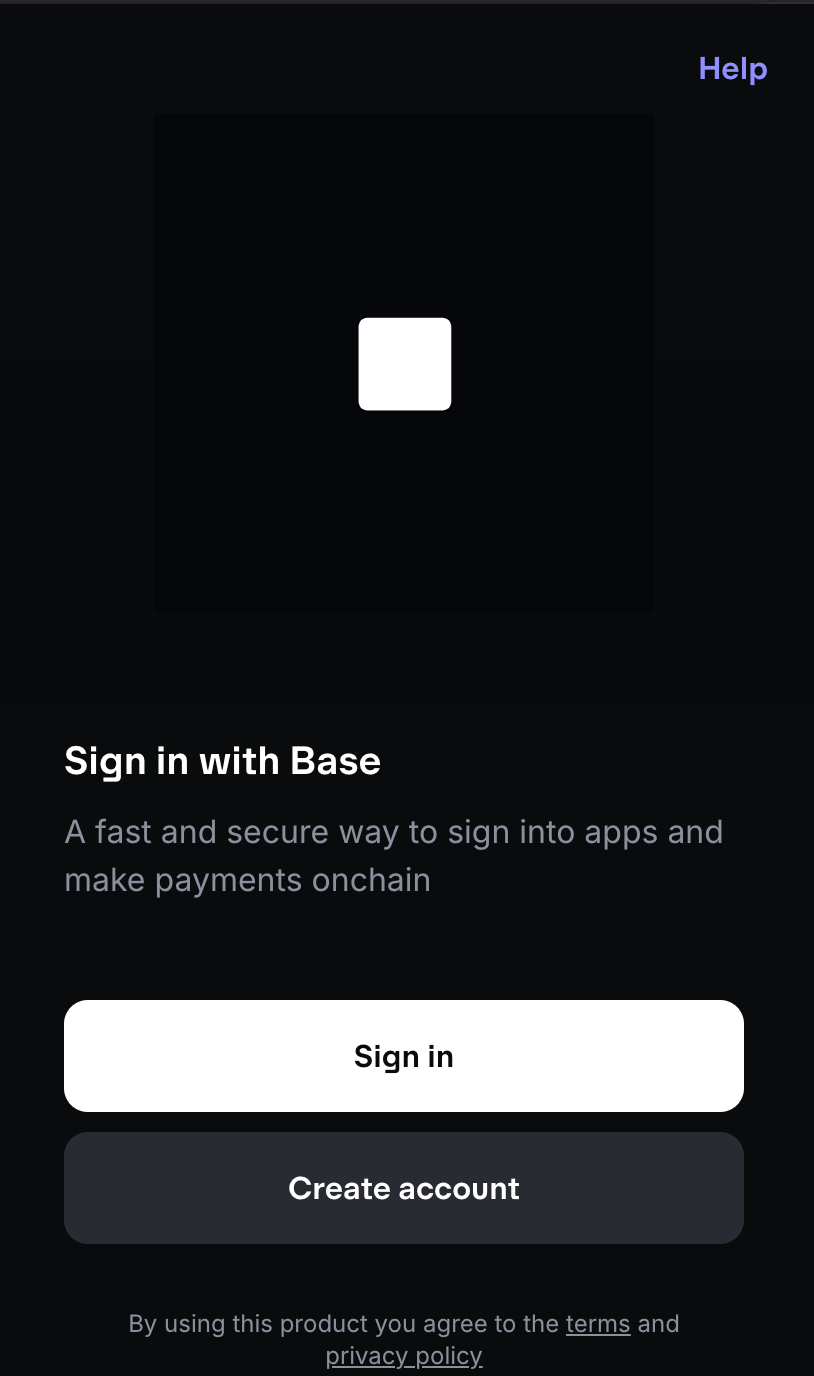
Even when it looks like a normal login, pause and read the prompt… some flows can request permissions that affect your onchain account.
Step 2 Create Coinbase Smart Wallet And Save Your Passkey
When you create the wallet, you will be prompted to create and save a passkey using your device.
- Follow the on-screen prompts to create the Smart Wallet
- When asked to save a passkey, approve it using Face ID, Touch ID, or your Android biometrics
- Do not rush the prompt, confirm you understand which device account is storing the passkey
The key idea is simple: your passkey is now the thing that controls access, so treat it like the most sensitive part of your setup.
During setup you will be asked to create and name a passkey, which is stored in your device’s passkey manager and used to unlock the wallet.
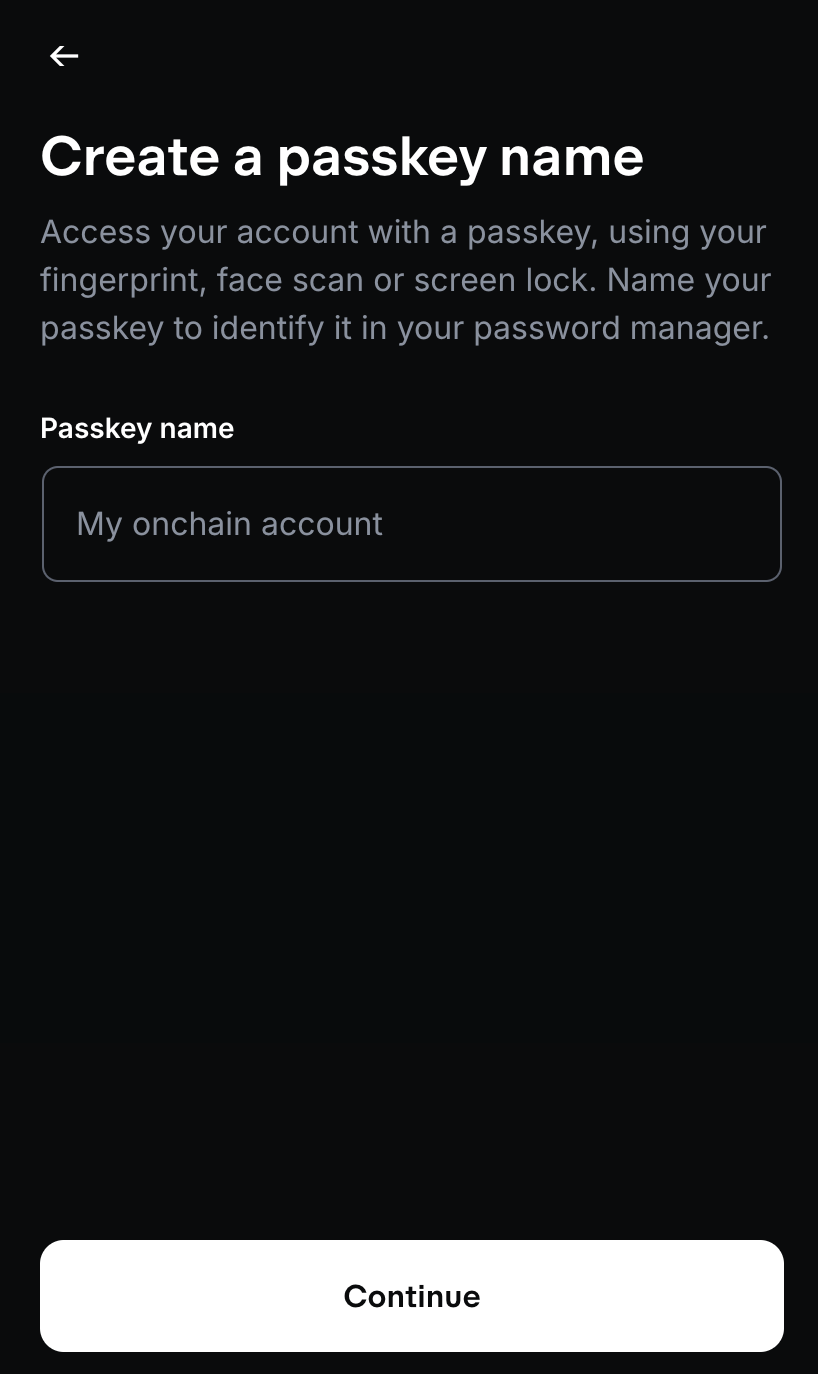
Name the passkey clearly so you can recognise it later, especially if you use multiple devices or create more than one wallet.
Step 3 Coinbase Smart Wallet Login Using Passkeys
After setup, signing in is typically a passkey flow rather than typing a password and a seed phrase restore.
If you see a “sign in with passkey” option, it means your device passkey provider is expected to authorise access.
Practical tip
If you use multiple Apple IDs or Google accounts, make sure the device you are signing in on is using the same account that holds your passkey.
Step 4 Manage Your Smart Wallet Passkey The Right Way
This is the part most guides miss.
Passkey management is done through your device settings. Coinbase explicitly notes that passkey management happens via your device or passkey provider settings, and warns against deleting passkeys unless you are sure you are not using them.
On iOS
- Open Settings
- Go to Passwords
- Search for coinbase.com
- Find the Smart Wallet passkey entry and review it, rename it if needed, or delete only if you are completely sure.
On Android
The path varies by device, but the key idea is the same, manage passkeys in device passkey settings, not in random apps.
If you lose track of where passkeys live, you can accidentally delete the one thing your wallet needs to sign in.
Fees, Gas, And What “Sponsored” Means
Some smart wallet flows can reduce early friction by making first actions easier, but do not assume everything is free forever.
On Base ecosystem tooling, gas sponsorship is a known user experience goal via paymasters, but it depends on the app and the network context.
A safer expectation is:
- You may see smoother onboarding and fewer “I have funds but cannot move them” moments
- You should still expect network fees to exist at some point
- Always read the confirmation screen before approving anything
Safety Checklist That Prevents Most Losses
- Never follow passkey or support links sent by DMs. Navigate from official pages and bookmarks.
- Treat approvals and signatures as permissions, not pop-ups to click through.
- Keep long-term holdings separate from day-to-day app activity, regardless of wallet brand.
- Do not do “bulk clean ups” in passkey settings unless you are certain what each entry is.
Common Problems And Quick Fixes
- You cannot find the passkey on a new device
Fix: confirm you are using the same Apple ID or Google account that stored it, then look in device passkey settings for coinbase.com entries. - You deleted a Smart Wallet passkey
Fix: stop and verify whether another device still has access before making more changes. Avoid deleting anything else. - Confusing Coinbase account passkeys with Smart Wallet passkeys
Fix: label passkeys clearly in device settings so you know what is tied to what.
Coinbase positions Smart Wallet as a “smart wallet” because the account can be created and accessed with passkeys, rather than relying only on a recovery phrase.
This is the page you should use as a sanity check that you are on the official route before downloading anything. Treat it as an anti-phishing step… if the page or publisher details do not match, stop.
Mini FAQs
What Is Coinbase Smart Wallet?
Coinbase Smart Wallet is a smart wallet that uses passkeys so you can access your wallet across devices without relying on a traditional recovery phrase in the usual way.
What Are Smart Wallet Passkeys?
They are passkeys stored and managed through your device passkey provider, such as Apple or Google, and used to authorise wallet access.
How Does Coinbase Smart Wallet Login Work?
You sign in using your passkey. In practice this means approving with device biometrics, and making sure you are on the same device account that stores the passkey.
Where Do I Manage My Coinbase Smart Wallet Passkey?
In your device settings. On iOS, Coinbase points you to Settings, then Passwords, then search coinbase.com to find the Smart Wallet passkey entry.
Does Coinbase Smart Wallet Use A Seed Phrase?
The Smart Wallet model is designed around passkeys, so you are not relying on memorising a recovery phrase in the normal way. Your access depends on your passkey setup and device security.
Is Coinbase Wallet Now Called Base?
The mobile app store listings show Coinbase Wallet presented as Base (formerly Coinbase Wallet). The safest habit is downloading only from official Coinbase pages and official app stores.
Can I Use Coinbase Smart Wallet On Multiple Devices?
That is the goal of passkeys, access across devices, but it works smoothly only when your devices share the same passkey provider account and your device security is set up properly.
What Is The Biggest Mistake People Make With Passkeys?
Deleting passkeys without realising they are actively used. Coinbase specifically warns to delete only if you are sure you are not using the passkey, and to avoid bulk clean ups.

If this helped you, join Alpha Insider for weekly timing windows, dashboards, and member videos. Fewer mistakes… cleaner execution… more conviction.
The Markets Unplugged members get:
➡️ Kairos timing windows to plan entries before the crowd moves
➡️ A full DCA Targets page with levels mapped for this cycle
➡️ Exclusive member videos breaking down charts in plain English
➡️ A private Telegram community where conviction is shared daily
This isn’t noise… it’s the full playbook.
Legal And Risk Notice
This article is for educational purposes only and does not constitute financial advice, investment advice, or a recommendation to buy or sell any asset. Crypto assets can be volatile and transactions are irreversible. Always verify websites, app listings, addresses, networks, fees, approvals, and signature prompts, and never share sensitive recovery information.


Discussion