


This guide is part of the wallet series. For the full wallet hub with setup guides, comparisons, recovery help, and wallet types, see the Bitcoin and altcoin wallets guide.
For a comparison of Trust Wallet against Phantom and MetaMask, see the Solflare vs Phantom vs MetaMask guide.
For hardware wallet security alongside Trust Wallet, see the hardware wallet vs software wallet guide.
If any terms are unfamiliar, the Crypto Glossary covers seed phrase, recovery phrase, private key, gas fees, and token approvals in plain English.
Quick Answer
Trust Wallet is a self-custody multi-chain wallet supporting over 100 blockchains including Bitcoin, Ethereum, BNB Chain, and Solana in one app. To set it up safely: download only from official sources, write your 12-word recovery phrase on paper and store it offline, set a strong passcode, and send a small test transfer before moving larger amounts. Never share your recovery phrase with anyone. Most wallet losses happen through fake apps, phishing, and careless approvals, not through the wallet itself failing.
Trust Wallet Features 2026
Trust Wallet has expanded significantly as a platform. Here is what it supports in 2026.
Multi-chain support Over 100 blockchains supported natively including Bitcoin, Ethereum, BNB Chain, Solana, Polygon, Arbitrum, Avalanche, Optimism, and many others. All manageable from a single app without switching wallets.
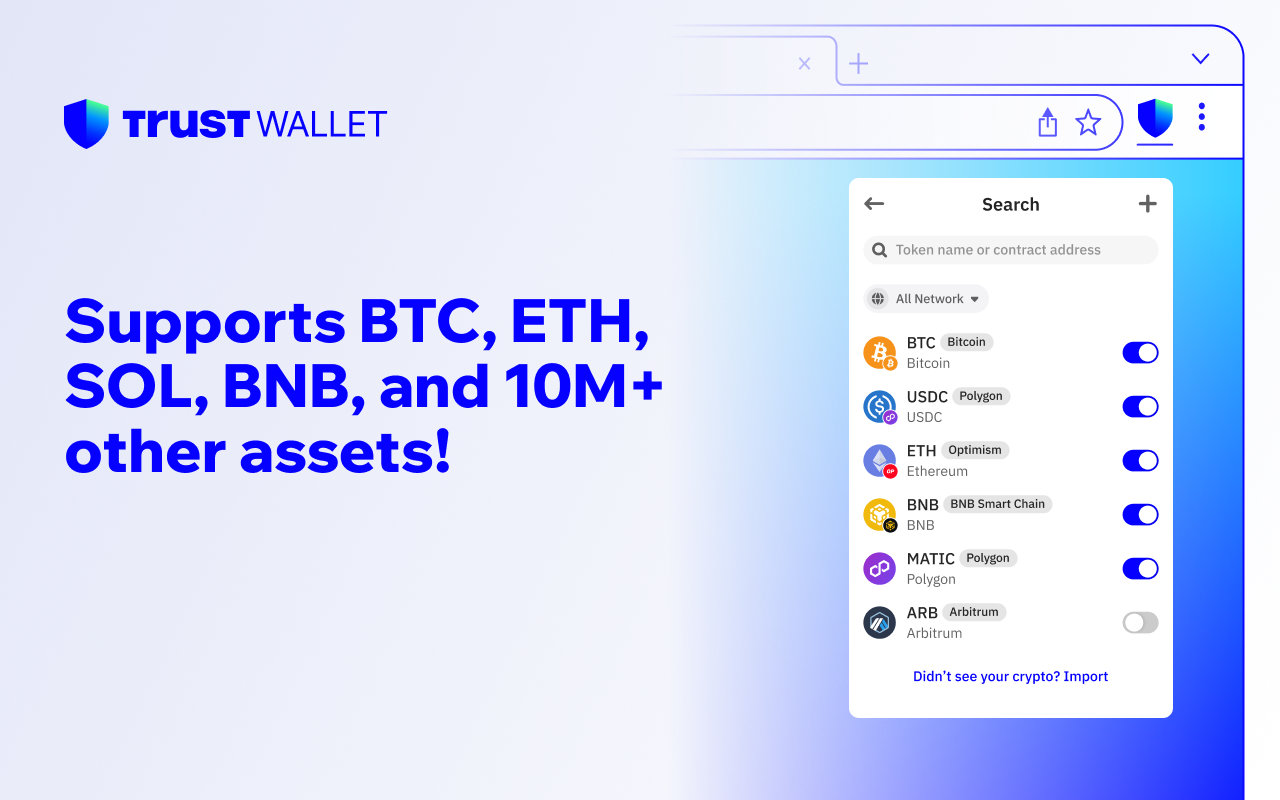
Bitcoin support Bitcoin is supported natively in Trust Wallet. You can send, receive, and store BTC directly in the app. Trust Wallet generates a dedicated Bitcoin address that is separate from your Ethereum and other network addresses. Always verify you are on the Bitcoin network when transacting BTC.
Built-in swaps Swap tokens directly inside Trust Wallet without leaving the app. The swap feature aggregates rates across providers. Always check the rate and fees before confirming.
dApp browser Connect to Web3 applications, DeFi protocols, and NFT platforms directly through Trust Wallet's built-in browser. Treat every connection and approval as a security decision.
NFT support View, store, and manage NFTs across supported networks inside the app.
Staking Stake select assets directly in Trust Wallet to earn rewards. Available for supported proof-of-stake networks.
Token approval management Review and revoke token approvals directly inside Trust Wallet. This is one of the most important security features available. Use it regularly to remove permissions from apps you no longer use.
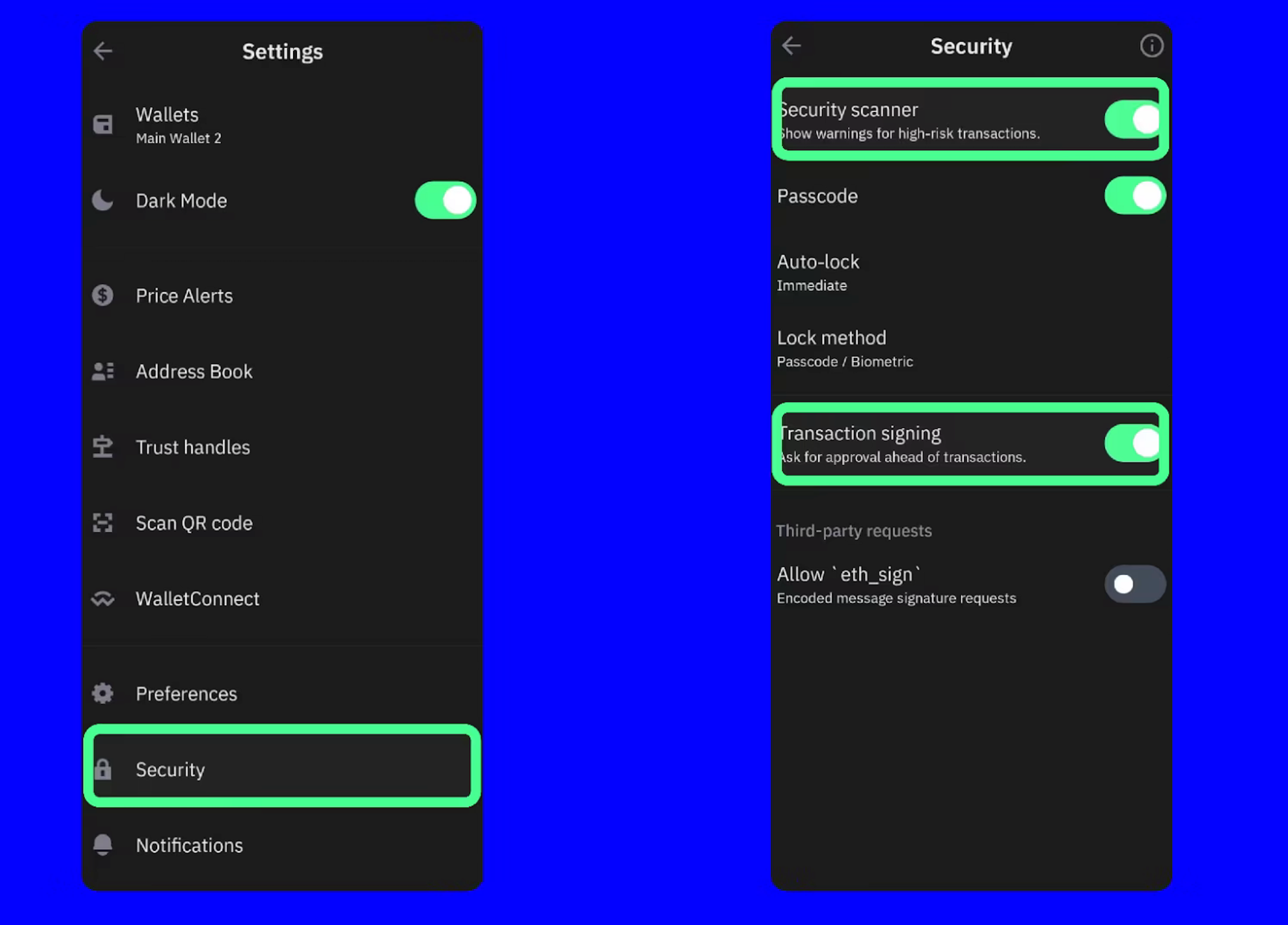
Security scanner Trust Wallet includes a built-in security scanner that flags potentially risky transactions before you approve them. Pay attention to these warnings.
Browser extension Available as a Chrome browser extension alongside the mobile app. Useful for desktop DeFi activity. Install only from the official Chrome Web Store listing.
Trust Wallet Bitcoin Support 2026
Bitcoin support is one of the most searched features of Trust Wallet and it is fully supported in 2026.
When you create a Trust Wallet, a Bitcoin wallet address is generated automatically alongside your Ethereum and other network addresses. Your Bitcoin address starts with "1", "3", or "bc1" depending on the address format selected.
To receive Bitcoin in Trust Wallet:
- Open Trust Wallet and tap Receive
- Search for Bitcoin or BTC
- Select Bitcoin and make sure it shows the Bitcoin network not a wrapped token
- Copy the address or scan the QR code
- Send a small test amount first before transferring larger holdings
To send Bitcoin from Trust Wallet:
- Tap Send
- Select Bitcoin
- Enter the recipient address carefully
- Enter the amount
- Review the network fee
- Confirm the transaction
The most common mistake with Bitcoin in Trust Wallet is confusing native Bitcoin with wrapped Bitcoin tokens like WBTC which run on Ethereum. They are different assets on different networks. Native BTC uses the Bitcoin network. WBTC uses the Ethereum network. Always verify which one you are working with before sending.
How To Add a Custom Network to Trust Wallet
Trust Wallet supports adding custom EVM-compatible networks that are not listed by default.
Step by step:
- Open Trust Wallet and go to Settings
- Find Networks or Manage Networks depending on your app version
- Tap Add Network or the plus button
- Enter the network details: network name, RPC URL, chain ID, currency symbol, and block explorer URL
- Save the network
Where to find these details: the official documentation or website of the network you are adding. Only use RPC URLs from official sources. Malicious RPC endpoints can intercept transaction data. Never add a custom network based on details sent to you in Telegram, Discord, or social media.
Before you set up: free safety checklist. How to spot a fake wallet download, store your recovery phrase safely and check what you sign. One page, free with a TMU account.
Get the checklist →How To Set Up Trust Wallet Step by Step
Step 1: Install from an official source
Download Trust Wallet only from the official Trust Wallet website, the Apple App Store with the publisher verified, the Google Play Store with the publisher verified, or the official Chrome Web Store listing for the browser extension.
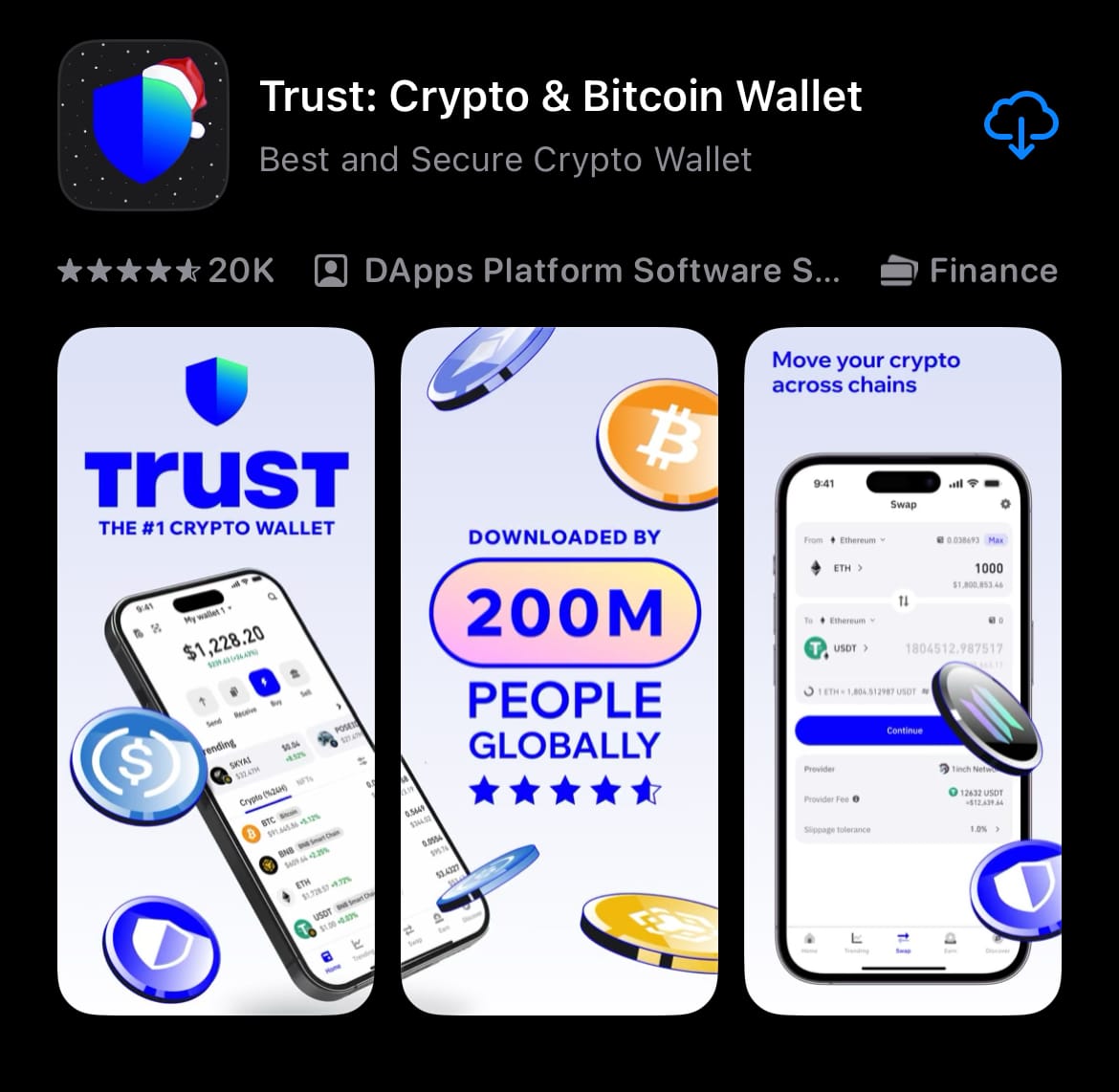
Avoid ads, search results that look slightly off, Telegram links, or anyone offering to send you a download link in DMs. Fake Trust Wallet apps are one of the most common crypto scams.
Step 2: Install the browser extension from the correct listing
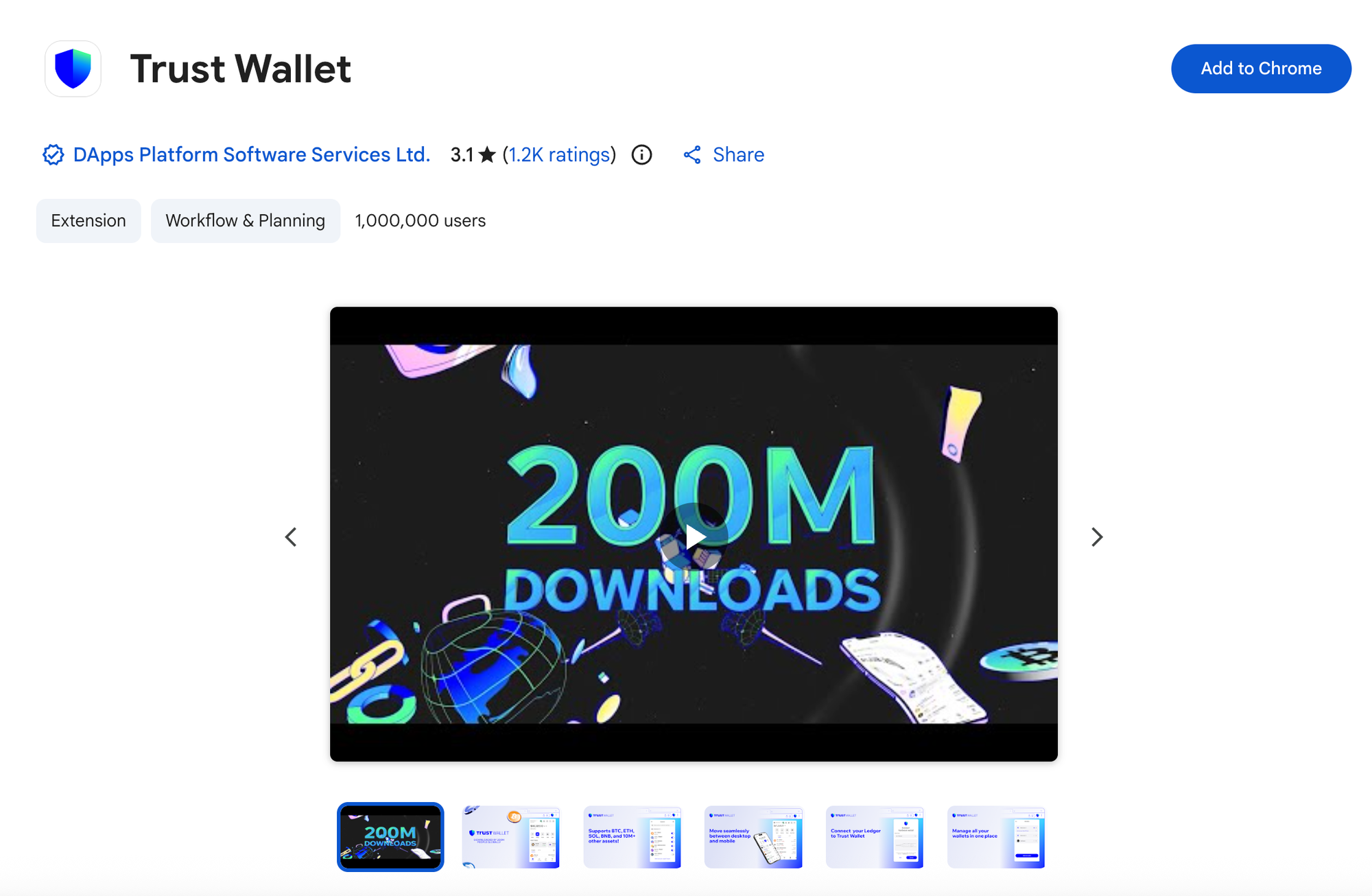
If you are installing the browser extension for desktop use, go to the Chrome Web Store and verify the publisher before adding it.
Step 3: Create a new wallet
Open the app and select Create A New Wallet. Do not import an existing wallet unless you are restoring a wallet you already own.
Step 4: Set a strong local lock
Set a passcode that is not a simple pattern or repeated number. Enable biometric unlock if your device supports it. Turn on auto-lock so the app locks after a short period of inactivity.
Step 5: Back up your recovery phrase
Trust Wallet will show you a 12-word recovery phrase. This is the master key to your wallet. Write every word down on paper in the correct order. Store the paper somewhere private, dry, and secure. Consider making two copies stored in separate locations.
Do not screenshot the recovery phrase. Do not store it in notes apps, email drafts, or cloud storage. Do not type it into any website or form. Do not share it with any person, support agent, or application.
There is no reset option if you lose your recovery phrase. Trust Wallet does not store it. If it is lost, the funds in that wallet are inaccessible permanently.
Step 6: Test with a small transfer first
Before moving significant funds into Trust Wallet, send a small test amount. Confirm it arrives correctly on the right network. Then send the remainder. This catches any address or network mistakes before they matter.
Trust Wallet Official Safety Settings
These settings should be configured before you use Trust Wallet for any significant activity.
Security scanner: Enable this in settings. It flags transactions that show characteristics associated with scams or exploits before you confirm.
Transaction signing prompts: Ensure these are turned on. You want to see a clear confirmation step for every transaction and approval.
Auto-lock: Set the wallet to lock automatically after one to five minutes of inactivity.
Notification settings: Enable notifications for incoming transactions so you can monitor your wallet activity.
Token Approvals: The Most Underestimated Risk
Most wallet drains do not happen because someone cracked your password. They happen through token approvals.
When you use a dApp and approve a transaction, you are often granting that smart contract permission to move your tokens. If the contract is malicious or gets exploited, it can drain tokens it has permission to access.
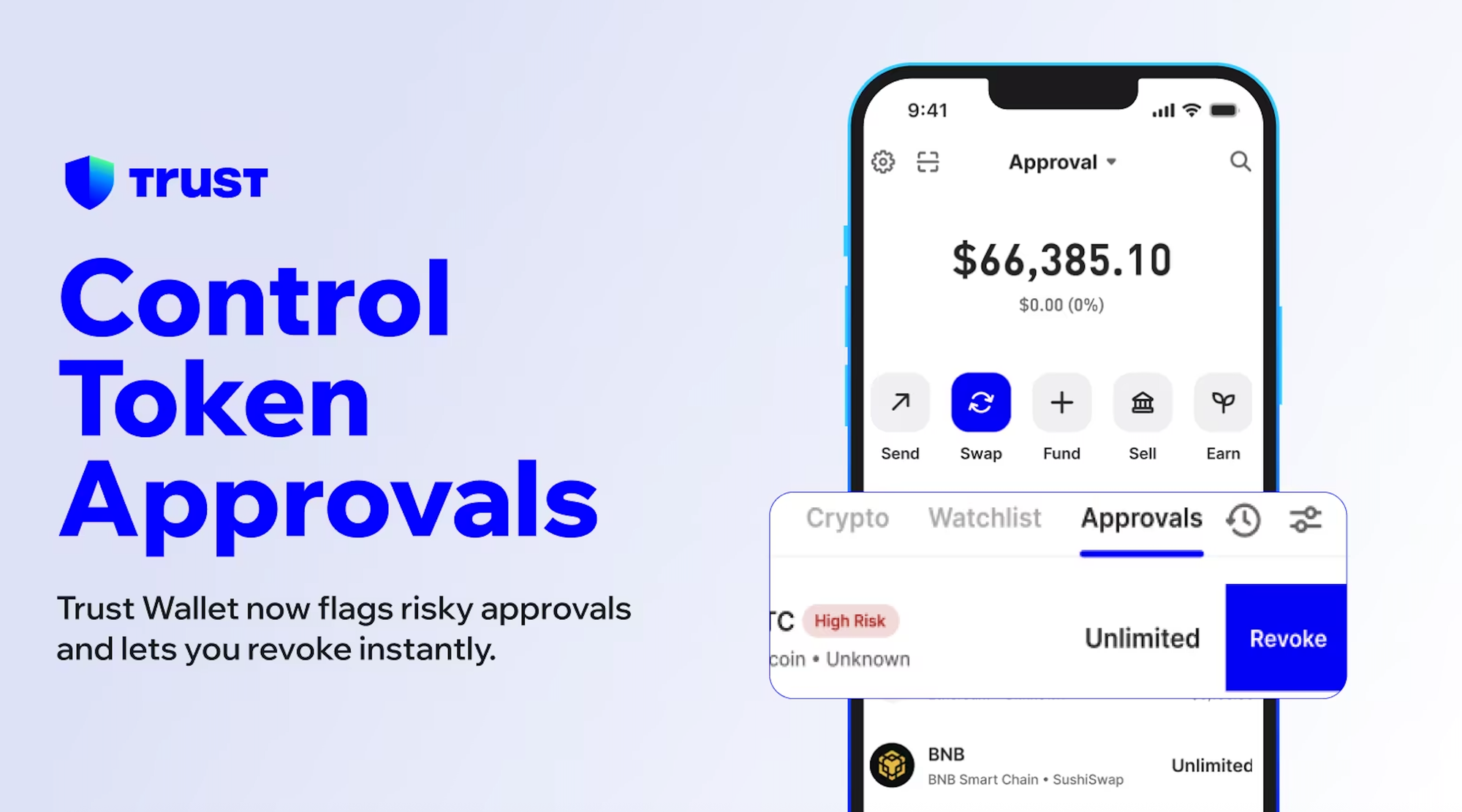
How to stay safe with approvals: Approve only what is needed for each specific action rather than granting unlimited approval. Review the approval details before confirming. After using a new dApp, check your active approvals and revoke any that are no longer needed.
How To Revoke Token Approvals in Trust Wallet
Token approvals can stay active long after you stop using an app. Review them occasionally, especially after using new dApps.
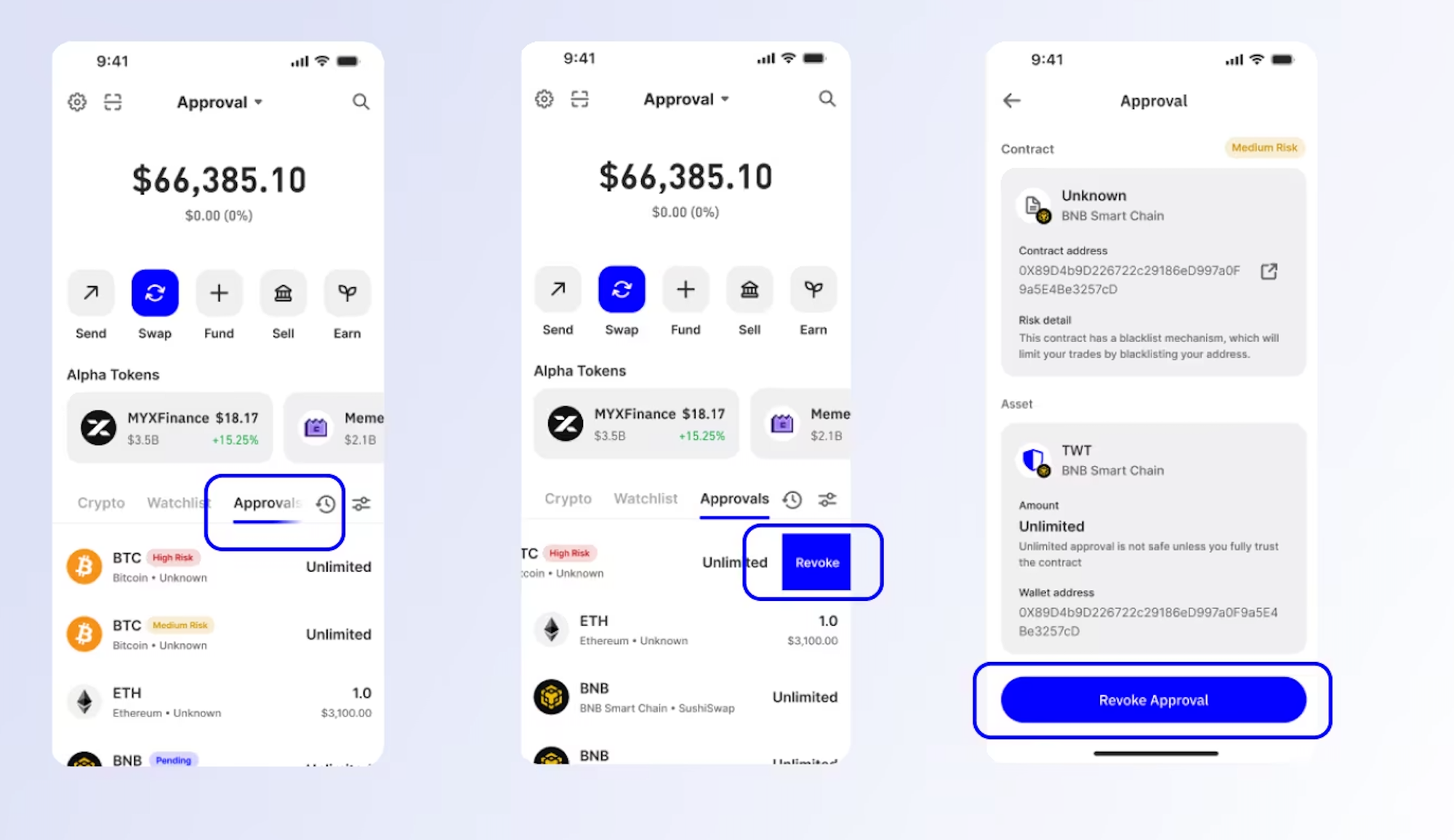
Steps to revoke:
- Go to the Security or Approvals section in Trust Wallet settings
- Review the list of active permissions
- Tap any approval you want to revoke
- Confirm the revocation
Note that revoking is itself an on-chain transaction so a small gas fee applies. For EVM networks you can also use Revoke.cash to review and manage approvals across multiple dApps simultaneously.
Trust Wallet vs MetaMask: Which Should You Use?
Choose Trust Wallet if:
- You need Bitcoin support alongside Ethereum and other chains
- You want everything in one mobile app
- You use BNB Chain or other non-EVM networks regularly
- You prefer a mobile-first experience
Choose MetaMask if:
- Your primary activity is on Ethereum and EVM DeFi
- You want maximum compatibility with EVM protocols
- You work primarily from a desktop browser
- You do not need Bitcoin or non-EVM network support
Many active crypto users run both. Trust Wallet for multi-chain mobile use and MetaMask or Rabby for desktop EVM DeFi activity.
Common Trust Wallet Issues and Fixes
Transaction pending for a long time The network fee may have been set too low. On Ethereum and EVM chains you can sometimes speed up a pending transaction by resubmitting with a higher fee. On Bitcoin, transactions can take longer during periods of high network activity.
Token not showing in wallet The token may need to be added manually. Search for the token name or contract address in Trust Wallet's token list. If it is not there, add it using the contract address from the official project website. Never use contract addresses shared on social media or Telegram.
Wrong network selected If you sent a token on the wrong network, recovery depends on whether the receiving address exists on that network. Always verify the network before confirming any transaction.
Recovery phrase not working Check the word order carefully. Each word must be in the exact position Trust Wallet assigned it. Check spelling of each word. Recovery phrases use a specific word list.
Frequently Asked Questions
What are the main Trust Wallet features in 2026? Multi-chain support across 100-plus blockchains, built-in swaps, dApp browser, NFT support, staking, token approval management, security scanner, biometric lock, and a browser extension alongside the mobile app.
Does Trust Wallet support Bitcoin in 2026? Yes. Bitcoin is supported natively. Trust Wallet generates a dedicated Bitcoin address and lets you send, receive, and store BTC directly in the app.
How do I set up Trust Wallet step by step? Download from official sources only, create a new wallet, set a strong passcode, write your recovery phrase on paper and store it offline, then send a small test transfer before moving larger amounts.
How do I add a custom network to Trust Wallet? Go to Settings, then Networks or Manage Networks, tap Add Network, and enter the RPC URL, chain ID, currency symbol, and block explorer URL from the official documentation of the network you are adding.
Is Trust Wallet safe in 2026? Yes, when used correctly. Install from official sources only, never share your recovery phrase, use a strong passcode, and review every approval before confirming.
What is the difference between Trust Wallet and MetaMask? Trust Wallet is multi-chain and mobile-first, supporting Bitcoin alongside EVM and non-EVM networks. MetaMask is primarily an EVM wallet focused on Ethereum and compatible chains.
What are Trust Wallet official features? Multi-chain support, built-in swaps, a dApp browser, NFT storage, staking, token approval management, a security scanner, biometric security, and both mobile and browser extension versions.
Free: the Wallet and Bridging Safety Checklist. The checks to run before you download a wallet, sign a transaction or bridge tokens. One page, free with a TMU account.
Get the checklist →Once your wallet is set up safely, the next layer is reading the market. Every month we publish a scored record of every call we made, hits and misses in the same table. Free to read, no card required.
See the record →


Discussion